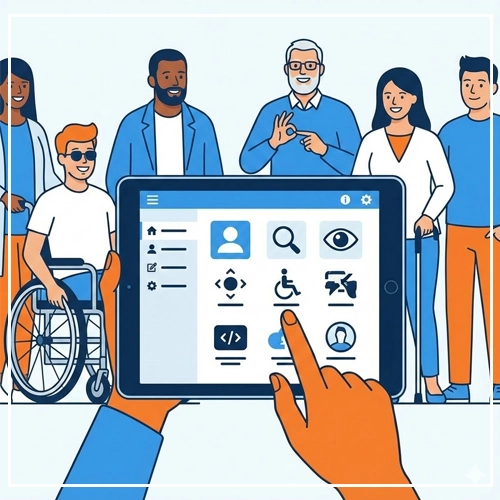
UI Accessibility Testing Tools are software plugins, browser extensions, and AI agents that automatically scan your design or code against accessibility rules, identifying errors in contrast, structure, and ARIA labels before you publish.
You cannot “eyeball” accessibility. A button might look high-contrast to you, but if the hex codes fail the mathematical ratio, you fail the audit.
To ensure compliance with the strict European Accessibility Act (EAA) and WCAG 2.1 standards, you need software that validates your work.
In 2025, the best tools don’t just find errors; they use AI to suggest the fix. Here are the top 5 UI accessibility testing tools you need in your workflow right now.
The “Workflow” Strategy: When to Test?
Before we list the tools, it is critical to understand when to use them. Accessibility is not a “post-launch” step; it happens in three phases:
- Design Phase: Catching visual errors (contrast, font size) in Figma/Sketch.
- Development Phase: Catching code errors (missing labels, bad semantics) in the browser.
- Audit Phase: Catching usability errors with screen readers and manual tests.
1. Stark (Best for Designers)
If you are a UI designer, Stark is your first line of defense. It is a plugin that lives directly inside your design tool, so you don’t have to export screenshots to check them.
- Platform: Figma, Sketch, Adobe XD, Chrome.
- Best For: Design Phase (Visuals).
- Key Feature: Vision Simulator.Stark allows you to simulate what your design looks like to users with different types of color blindness (Protanopia, Deuteranopia) and blurred vision (cataracts). This helps you design error states that don’t rely on color alone.
- Why use it: It prevents “accessibility debt” by catching errors before a single line of code is written.
2. axe DevTools (Best for Developers)
axe DevTools by Deque Systems is widely considered the industry standard for code validation. It is favored by engineering teams because it focuses on accuracy.
- Platform: Chrome / Firefox Extension.
- Best For: Development Phase (Code).
- Key Feature: “No False Positives.”Many tools flag things that aren’t actually errors. Axe is famous for its reliability. If Axe says it’s broken, it is broken.
- Intelligent Guided Tests:The Pro version includes a wizard that walks you through testing complex interactive components (like Modals or Carousels) that automated bots usually miss.
3. Google Lighthouse (Best for Quick Scores)
If you want a quick “health check” of your UI, Lighthouse is the most accessible tool because you already have it installed.
- Platform: Built into Google Chrome (Developer Tools).
- Best For: SEO & Performance Audits.
- Key Feature: The 0-100 Score.Lighthouse generates a numerical score for Accessibility, Performance, and SEO. This is an excellent metric to show stakeholders or clients to prove progress.
- The Limitation: It only catches about 30-40% of accessibility issues (the “low hanging fruit”). A score of 100/100 does not guarantee full compliance, but it’s a great baseline.
4. WAVE (Web Accessibility Evaluation Tool)
WAVE is excellent for visual learners and non-technical QA testers. Unlike other tools that give you a list of code errors, WAVE injects icons directly onto your webpage to show you exactly where the problem is.
- Platform: Browser Extension (Chrome/Firefox).
- Best For: Visual Auditing.
- Key Feature: The Structure Tab.WAVE instantly visualizes your Heading Hierarchy (H1-H6) and ARIA landmarks. This makes it incredibly easy to spot if you skipped a heading level or have a broken document outline.
5. ChatGPT / Claude (The New “AI Auditor”)
The newest addition to the list of UI accessibility testing tools isn’t a checker—it’s an agent. Large Language Models (LLMs) are surprisingly good at fixing semantic HTML.
- Platform: Web / API.
- Best For: Fixing the Code.
- How to use it:Instead of just finding an error, you can paste a block of code into ChatGPT with the prompt:“Audit this HTML component for WCAG 2.1 AA compliance. Identify any missing ARIA labels or semantic errors and rewrite the code to fix them.”
- Why use it: It acts as a senior developer pair-programmer, explaining why the fix works.
Comparison Table: Features & Pricing
| Tool | Best Workflow Stage | Price | Killer Feature |
| Stark | Design (Figma) | Free / Pro ($12/mo) | Color Blindness Sim |
| axe DevTools | Development | Free / Pro ($40/mo) | Zero False Positives |
| Lighthouse | Quick Audit | Free | SEO Integration |
| WAVE | QA Testing | Free | Visual Error Icons |
| ChatGPT | Code Repair | Free / Plus | Instant Code Rewrite |
The “Manual Check”: The Tool You Can’t Download
It is important to remember that automated UI accessibility testing tools only catch about 40% of accessibility barriers. They can check if an image has an Alt Tag, but they cannot tell you if the description is accurate.
The Ultimate Test: Unplug your mouse.
Try to navigate your entire website using only the Tab, Shift+Tab, and Enter keys. If you get stuck in a menu, or if you can’t close a pop-up window, your site fails—no matter what the software says.
Conclusion: Combine Tools for Coverage
No single tool does it all. A robust 2025 workflow looks like this:
- Use Stark to check contrast while designing.
- Use axe DevTools to check the code while building.
- Use Manual Keyboard Testing to verify the user flow.
By combining these methods, you ensure your interface is ready for every user.